
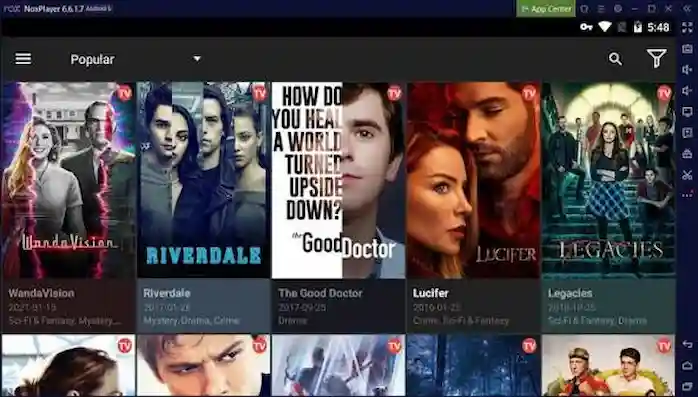
CineHD app for Android searches may lead to different apps and websites. These products may have different features, owners, and device needs. Before you install an app, check its name, developer, and download source. This can help you avoid fake files and apps that do not work on your phone. You should also check your Android version and free storage. If you already have the app, a few simple steps may help you fix setup problems. This guide explains how to check device support, review app permissions, and deal with common errors. The steps may vary by app version, so use the ones that match your device. Never install an unknown file just because a website says it is the latest version.
What Do You Need Before Installing CineHD?
Before you install an app, make sure your phone meets its basic needs. Start with these checks:
- Android version: Check which version your phone uses.
- Free storage: Make sure you have enough space.
- Internet connection: Use a stable connection to open pages and download files.
- Trusted source: Look for a known app store or a verified developer website.
- App details: Check the name, publisher, and version.
Each app may have different needs. Check the details for the exact product you want to use. Do not rely on information from another app with a similar name.
How to Check Android Compatibility
Your phone may not support every app or version. An older device may lack a feature that the app needs. A newer version of Android may also change how some apps work.
To check your Android version, open Settings and look for About phone or Software information. The menu name may differ by phone brand.
Next, compare your system version with the app’s listed needs. Make sure your phone meets the minimum requirements.
You should also check whether the app supports your device model. If the normal version does not work, do not try a modified file from an unknown site. It may create more problems.
How to Install the App Safely
Start with a trusted app store, such as Google Play, if the exact app appears there.
Follow these steps:
- Search for the full app name.
- Open its listing and check the developer.
- Read the app details and review its permissions.
- Check recent reviews for reports of errors or unwanted activity.
- Install it only after you have checked these details.
If you cannot find a trusted listing, do not assume that a website offering an APK is the official source. Similar names and icons do not prove that two products share the same owner.
Keep your phone’s security tools on. If your device shows a warning, read it before you continue.
Review App Permissions
App permissions control what an app can access on your phone. Some permissions may support its features, while others may not make sense.
For example, an entertainment app may need internet access to load online content. Requests for contacts, text messages, or your microphone need a clear reason.
On most Android phones, you can review permissions through Settings → Apps → select the app → Permissions. The menu names may vary.
Deny access that the app does not need. If it refuses to work without access to private data that has no clear link to its features, consider avoiding it.
Fix Common Installation Problems
Sometimes an app will not install or open. The cause may be your phone, the file, or the app itself.
The App Will Not Install
Check your free storage and confirm that the file matches your device. If you use an APK, check its source before trying again.
Do not download several copies from unknown sites. A new file name does not prove that the file is safe.
The App Keeps Crashing
Close the app and restart your phone. Then check for a valid update from the original source.
On Android, clearing the app cache may also help. Open your phone’s app settings, select the app, and look for storage options. Choose Clear cache if available. Avoid clearing app data unless you understand the effects, as this may remove saved settings.
The App Will Not Connect
Open another trusted website to test your internet connection. If other sites work, the problem may affect the app or its service.
Wait and try again if the service may be down. Reinstalling the app will not fix every connection problem.
How to Keep the App Updated
Updates may fix bugs, improve device support, and address security issues. Check for updates through the same trusted source you used to install the app.
Review the publisher before you install an update. Avoid pages that offer a special version but give no clear details about its source.
If an update asks you to turn off security tools or install extra software, stop and check the claim. Keep your Android system updated too, when your phone supports new updates.
Is CineHD Available on Every Android Phone?
No app works on every Android device. Support depends on the product, its system needs, and the features it uses.
Some apps may work on newer phones but fail on older models. Others may not support certain devices at all. Check the exact app listing instead of assuming that every product with the CineHD name has the same requirements.
If you cannot verify the developer or find clear setup details, do not install an unknown file just to test it.
Final Thoughts
Before using the CineHD app for Android, check your phone’s system version, free storage, app requirements, and download source. Review permissions before you allow access to private data.
If the app fails to install or open, start with simple checks. Restart your phone, test your connection, and look for a trusted update. Avoid unknown APK files and tools that ask you to turn off security features.
These steps can help you find compatibility problems and reduce the risk of installing an unsafe app. Always check the details of the exact product you plan to use.